

Support / CRM connections
Connect Attio to Pancake
Send leads you select from a Pancake Play to Attio people, with their companies when enabled. Choose the fields to send and follow each lead’s result. Pancake checks for existing records before creating new ones and keeps existing records unchanged.
Before you start
- A Pancake workspace. Attio is available to every workspace in Settings → Integrations.
- An Attio workspace administrator who can approve the connection.
- A lead in a Pancake Play, with an email or a LinkedIn profile mapped to a suitable Attio field.
Pancake’s subscription and trial are described on the pricing page. You also need your own Attio account; its plan and permissions determine which fields and objects are available.
Watch the walkthrough
This captioned screen recording uses fictional leads in a test workspace and a real Attio sandbox. It covers authorization, mapping, export, duplicate detection and disconnection.
The steps below provide the text equivalent of the walkthrough.
1. Connect your account
- Sign in to Pancake and choose the workspace you want to connect.
- Open Settings → Integrations → Attio, then select Connect.
- Choose the correct Attio workspace on the authorization screen.
- Review record read/write and object configuration read access, then select Confirm.
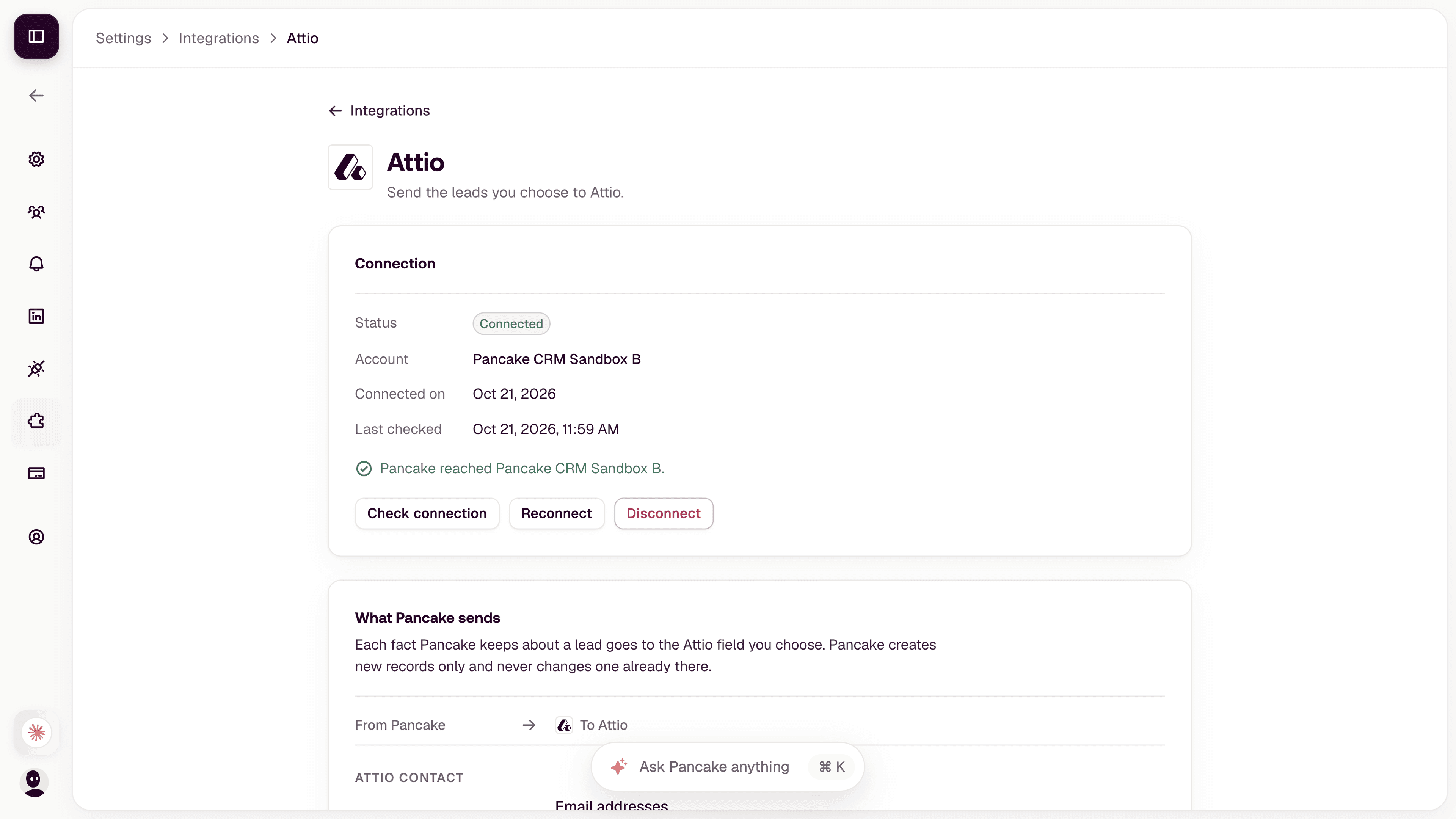
- When you return to Pancake, check the connected account name. Use Check connection to verify access.
You authorize Pancake on Attio’s own sign-in page. Do not paste your Attio password or API key into Pancake. If you cancel, return to Integrations and start the connection again.
2. Choose what Pancake sends
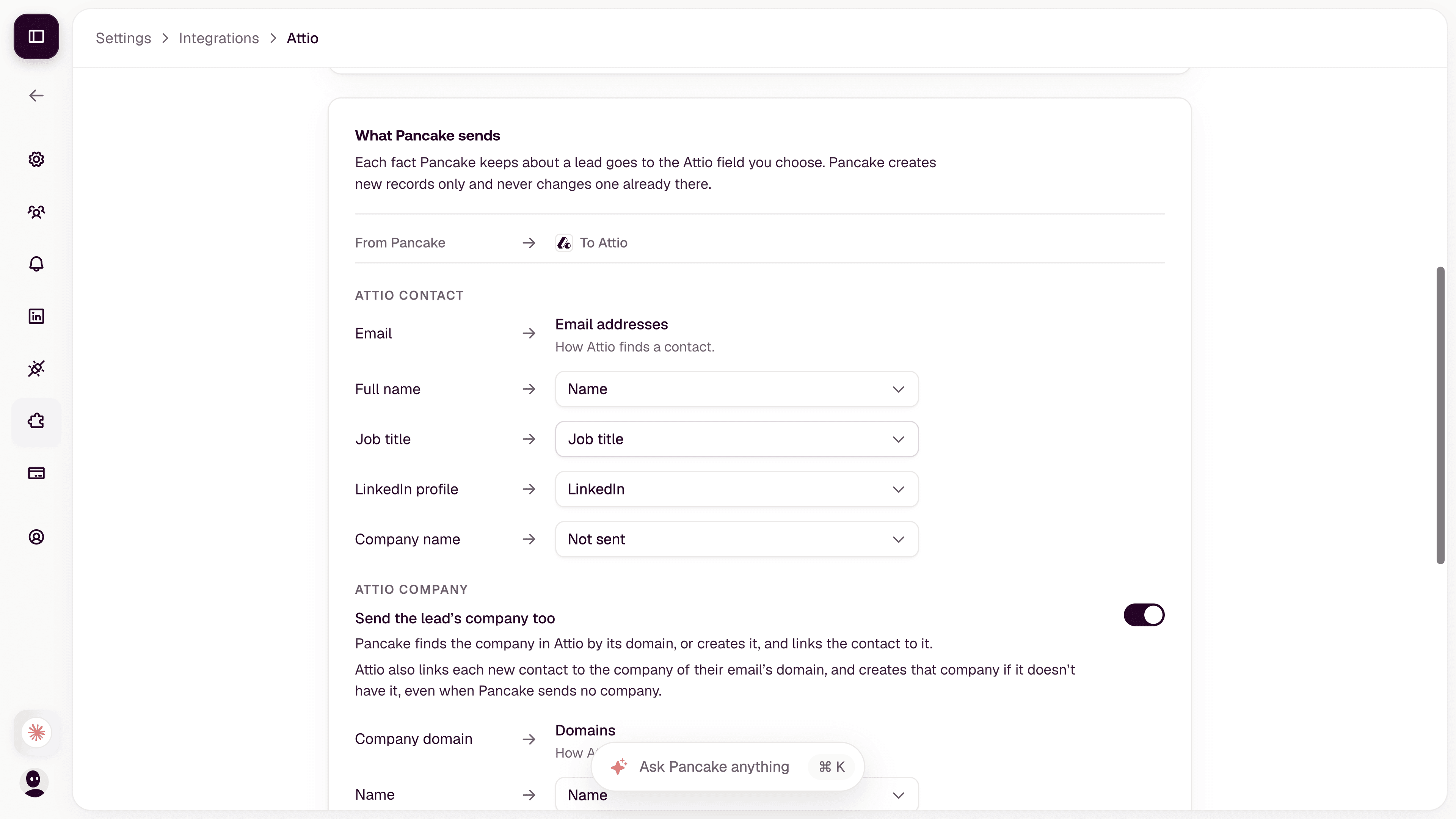
In What Pancake sends, each row shows a Pancake field and its destination in Attio. Review the suggested name, job title and LinkedIn fields. Choose Not sent for a field you do not want to export. Email is used to match contacts. A suitable LinkedIn field is needed to send a lead without an email.
Enable Send the lead’s company too to find a company by domain, create it when needed, and associate a newly created contact. Review the company name mapping, then select Save fields if you changed the suggestions. Use Read fields again after changing fields in Attio.
Attio can also create or associate a company automatically from a person’s email domain, even when Pancake’s company option is off. This is Attio’s own behavior.
3. Export selected leads
- Open a Play’s Leads page and select the leads to send.
- In the selected-leads toolbar, select Send to Attio (Send to… when several CRMs are connected, then choose Attio), and review the number of leads in the preview before confirming.
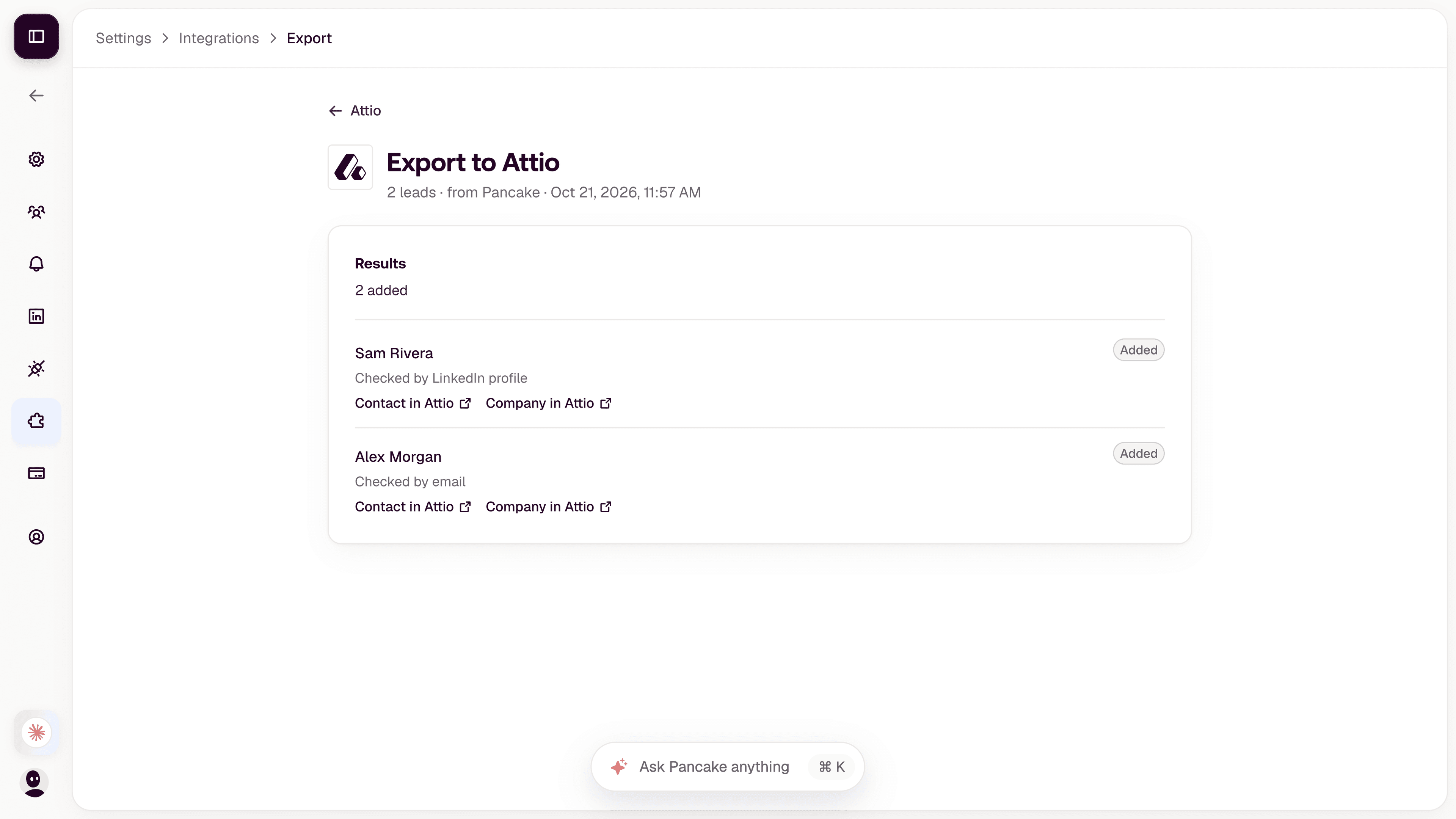
- Follow the export results. You can leave the page while Pancake processes the export.
- Open a successful result’s record link to see the person or contact in Attio.
The page’s Export menu can send the leads on the current tab. To send only a selection, use the selected-leads toolbar instead. Exports are started by you; connecting a CRM does not automatically export all your leads. Re-exporting a lead that Pancake can identify in Attio links the existing record instead of creating another. Pancake does not overwrite an existing record or import Attio records into Plays.
Data and permissions
- People: Pancake reads records to match identities and writes new records with the fields you mapped.
- Companies: when enabled and permitted, Pancake reads records to match domains and creates companies when needed.
- Field definitions: Pancake reads the available fields so you can choose valid destinations. Object configuration access is read-only.
Reading and writing CRM records supports the export and duplicate checks. It is not a continuous two-way sync. OAuth credentials are stored encrypted. Export history is kept in Pancake for 90 days. See the Privacy Policy and Terms of Service.
When a lead needs attention
- Missing identity: provide an email or map an available LinkedIn profile. Exporting does not automatically buy email enrichment.
- Several matches: resolve the duplicate identities in Attio before trying again. Pancake does not choose an arbitrary record.
- Connection expired or access removed: use Reconnect in Integrations, with an authorized Attio account.
- Field unavailable: use Read fields again, correct the mapping and save it.
- Result not confirmed: check Attio before sending again, because the record may already have been created.
Disconnect and remove access
In Pancake, open Settings → Integrations → Attio → Disconnect and confirm. This removes the stored connection for this Pancake workspace and stops new exports through it. Records already created in Attio remain there; a request already in progress may still complete.
To remove the app’s authorization in Attio, an administrator can uninstall Pancake from the workspace’s connected apps. This can affect other Pancake workspaces using that authorization.
Reconnect from Integrations when you want to resume exporting. Review the account and mapping before the next export.
Get help
Email support@pancake.ai with the provider name, approximate time and visible result. Never send passwords, OAuth codes, tokens, magic links or API keys. Avoid including customer lead data.